
Exporting reports
You can export a report of messages sent and received by completing the following five steps:
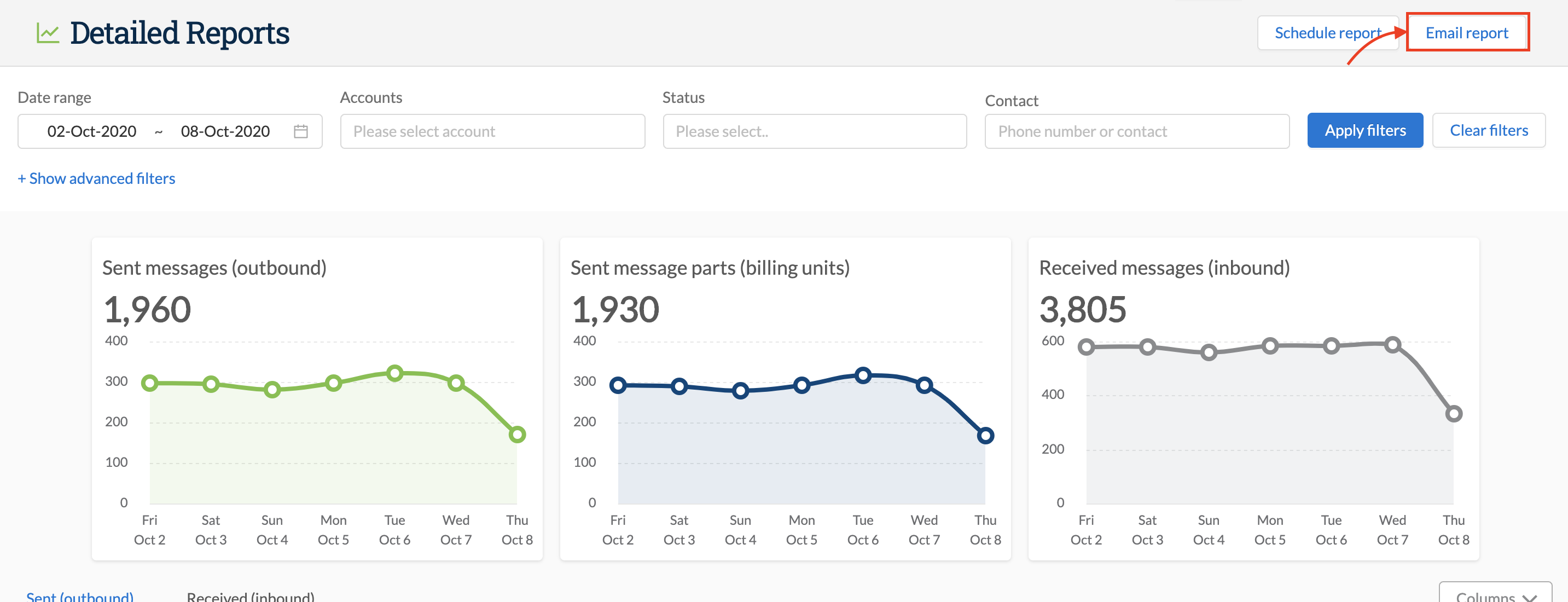
1. Go to Reports > Detailed Reports
2. Select the relevant date range and other filter parameters
3. Click on “Email report” - this will only appear if there is data available for the date range specified:
4. In the resulting pop-up, insert up to 5 email addresses
- Click enter or space bar after each email address to validate
- If an email address is deemed incorrect, it will be denoted by a red background and you have the ability to remove and retype the email address
- The Add my email button will insert the email address of the current user profile:
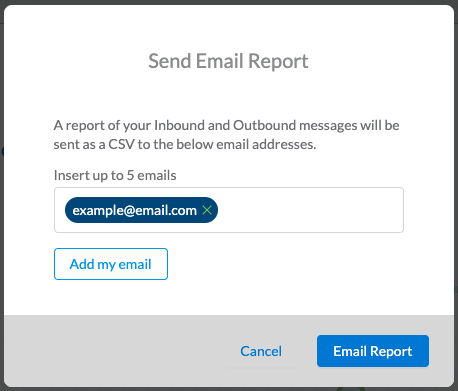
5. Click Email Report.
Outbound and inbound logs are generated separately so if you have data in each table you will receive two separate emails with a CSV file in each